



Multi-factor Authentication
Welcome to the Vancouver School Board’s MFA enrollment page. Here, you’ll learn why multi-factor authentication (MFA) is important, how to set it up using the Microsoft Authenticator App, and find answers to common questions. Our goal is to make the transition simple and secure for everyone.
Video: LIT Team Explains MFA and Next Steps
Watch this video from our Learning and Information Technology (LIT) team to learn why MFA matters, how it works, and what to expect during implementation.
Key Details
Microsoft is retiring SMS text message and phone call authentication method due to an increase in sophisticated AI phishing and account compromise attacks. SMS and voice are no longer positioned as secure authentication methods and will no longer be provided by Microsoft.
- September 1, 2026: Microsoft Authenticator App becomes the default authentication experience. Staff who are not using the Microsoft Authenticator App will be automatically prompted by Microsoft during sign-in asking them to set it up. VSB recommends that you complete the setup when prompted.
- By end of the Year: SMS text message and phone call verification will no longer be supported.
What is MFA?
Multi-Factor Authentication (MFA) adds an extra verification step beyond your username and password, such as an approval in the Microsoft Authenticator App, to confirm your identity.
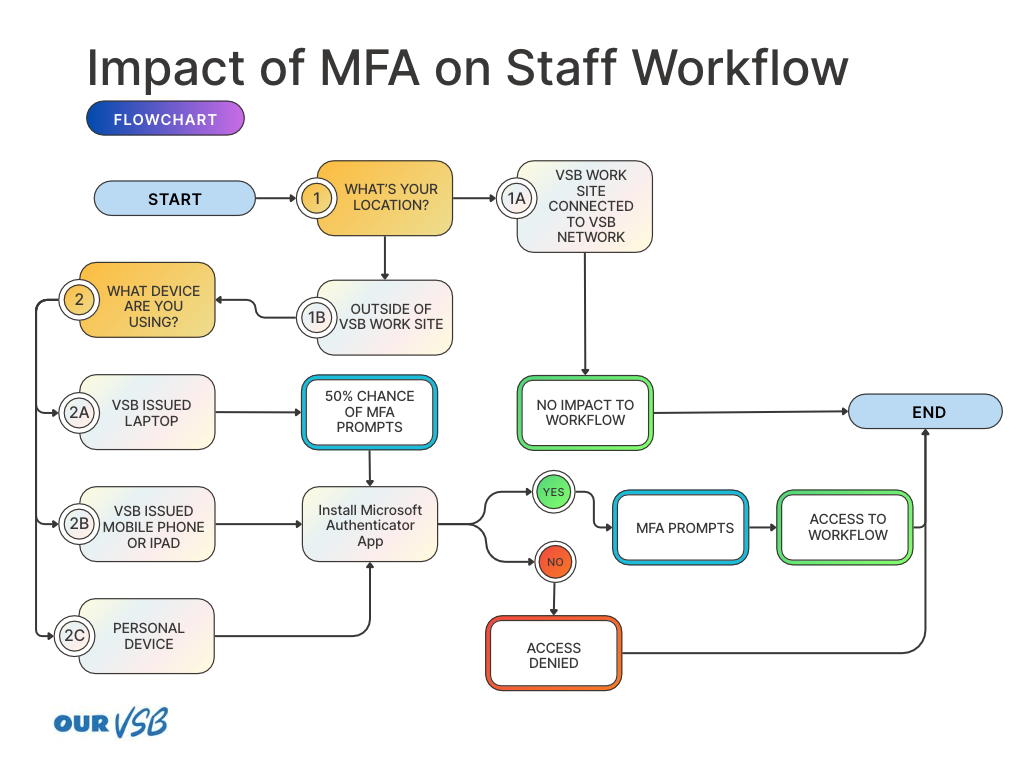
What is the impact of MFA on staff workflow?
Please see the flowchart below to learn how MFA affects your workflow.
Importance of MFA
MFA helps protect VSB systems and data by adding an extra layer of security beyond passwords, which can be stolen, guessed, or compromised. Microsoft reports that MFA can block 99.9% of account compromise attacks.
The Freedom of Information and Protection of Privacy Act (FIPPA) mandates that public bodies protect personal information with reasonable security arrangements, and MFA is considered one such arrangement.
Ultimately, MFA helps keep VSB students, staff, and district information safe by making it much harder for unauthorized users to access accounts.
Setting Up MFA
Follow the step-by-step instructions below to set up MFA the Microsoft Authenticator App.
Important Step: For VSB MacBook users
Please follow the instructions below to register your VSB MacBook for device compliance with MFA. This enables Microsoft to verify your device is secure and lets you access VSB services with fewer MFA prompts.
Learn more about Registering your VSB MacBook as a Compliant Device.
Frequently Asked Questions
Can I opt out of MFA?
No. Starting September 1, 2026, Microsoft will prompt you to set up the Microsoft Authenticator app if you do not already have it set up.
Please see the flowchart above to learn how MFA affects your workflow.
Will I be prompted for MFA?
Please see the flowchart above to learn how MFA impacts your workflow.
What programs require MFA?
Microsoft applications such as Teams, Outlook, OneDrive, SharePoint, and other Microsoft 365 services, and VSB custom in-house applications. It does not affect Smart Find Express (SFE) or PeopleSoft sign-ins.
How does MFA work?
Starting September 1, 2026, Microsoft Authenticator App becomes the default authentication experience. Staff who are not using the Microsoft Authenticator App be automatically prompted during sign-in asking them to set it up.SMS text message and voice call verification are no longer positioned as secure authentication methods and will no longer be provided by Microsoft.
What if I am unable to access my Microsoft programs due to MFA?
Please contact the IT Service Desk.
What if I forget my phone, buy a new one or change my phone number?
If you forget your phone, buy a new one or change your phone number, contact the VSB Service Desk. Set up MFA on your new phone before relinquishing your old one.
What if I’m travelling?
If you need to access VSB programs while travelling for work or vacation, bring the mobile device with the Microsoft Authenticator App installed. You will need it to approve sign-in requests and verify your identity.
Travel Outside Canada
VSB accounts can only be accessed from within Canada. If you will be travelling internationally and require access to VSB services, please submit a ticket to the IT Service Desk before your departure, including your travel dates in the request. Access requests must be supported by a valid business need and approved by your supervisor.
What is the impact if I use a VPN?
Installing or using a Virtual Private Network (VPN) on a VSB-issued device is not permitted unless prior approval has been granted by the IT department. Furthermore, using a VPN to access your Microsoft account could result in: account lockouts, MFA challenge, and password resets.
If you're locked out, you must call the IT Service Desk to regain access.
Do I need to install the Microsoft Authenticator App on multiple devices?
No. You only need to install the Microsoft Authenticator app once. MFA is linked to your VSB Microsoft work account, not to each device you use. You must have access to the device where your Microsoft Authenticator App is set up to approve sign-ins.
Need help?
For any questions related to multi-factor authentication, please call the IT Service Desk at +1-604-713-4444 or email at servicedesk@vsb.bc.ca.